
CASE STUDY : FEDERAL POWER POINT TO PDF TAG STRUCTURE REMEDIATION
Recovering Nested Content Hidden by a PowerPoint-to-PDF Conversion
Project Context:
Federal Agency, Office of the Chief Information Officer | IT Equipment Turn-In Event
Role: Accessibility Remediation Consultant (Federal Contract)
Document Type: 1-page agency announcement, exported from PowerPoint to PDF
Tools: Adobe Acrobat Pro (Accessibility Checker, Accessibility Tags, Reading Order, Document Properties), Colour Contrast Analyser
Screenshots show a recreated sample with generic agency branding. The original federal file cannot be shared, so its conversion issues were reproduced for demonstration.
Challenge
A federal office needed its IT equipment turn-in announcement updated with a new location and returned as a Section 508 conformant PDF within a day. The request was brief, so I researched the new location, updated the content, and remediated the file. Midway through, the requester revised the source file in PowerPoint and reconverted it herself. The new PDF came back with worse automatic tagging than the original, so the remediation had to start over.
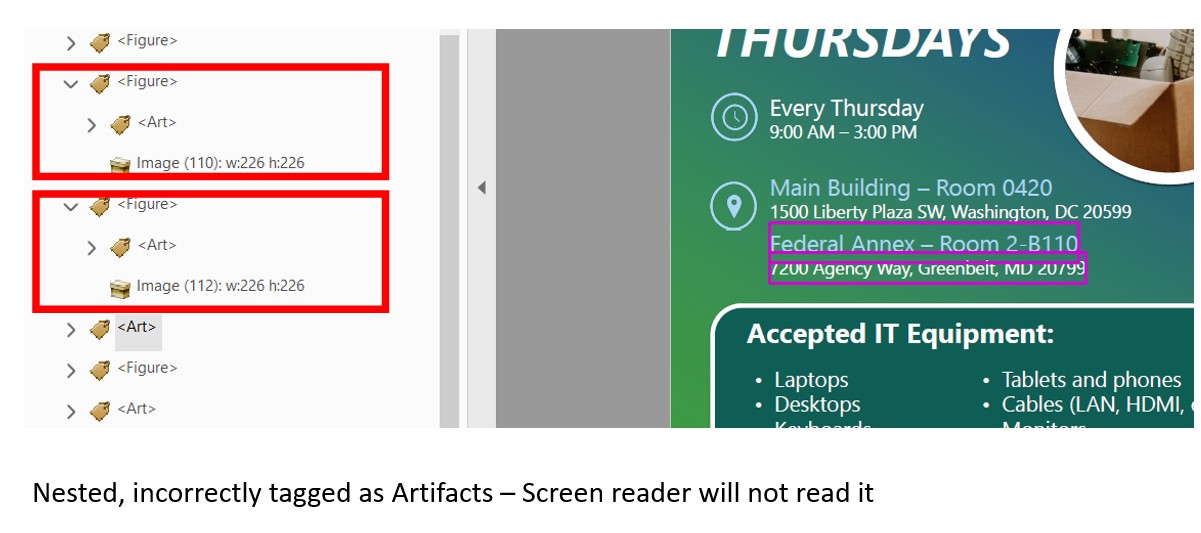
The reconverted file looked correct on screen but was broken underneath. Most of the text, including the schedule and locations, was wrapped in decorative (Art) tags, so a screen reader user would never hear when or where the event was.
Initial Accessibility Assessment
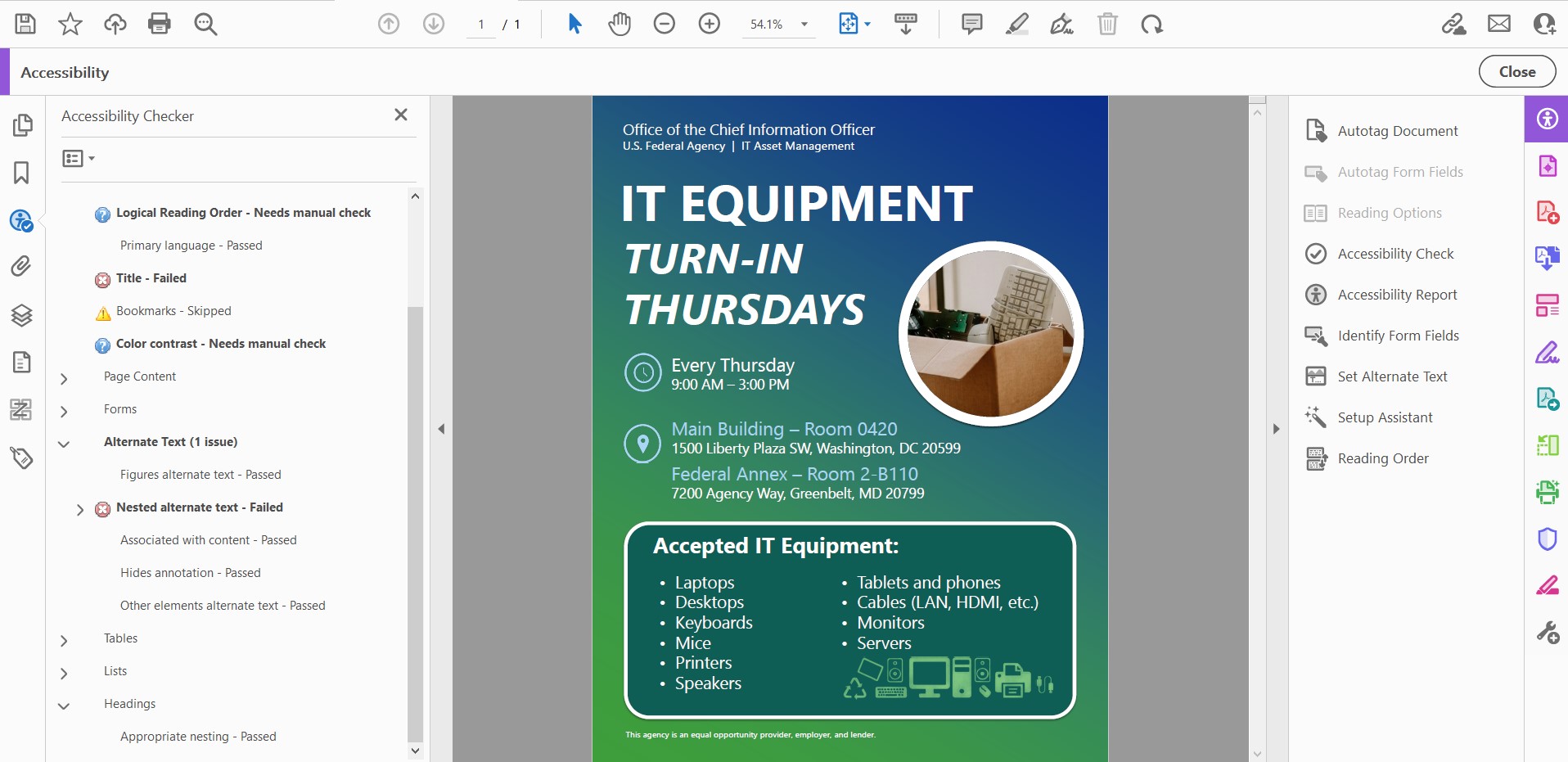
Critical Issues Identified:
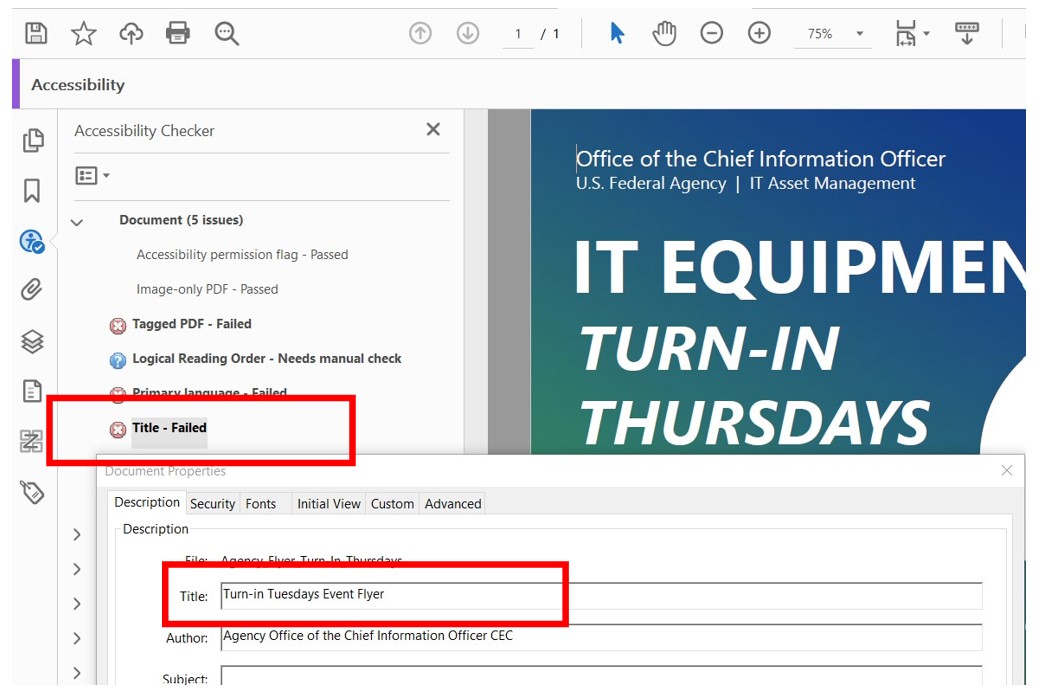
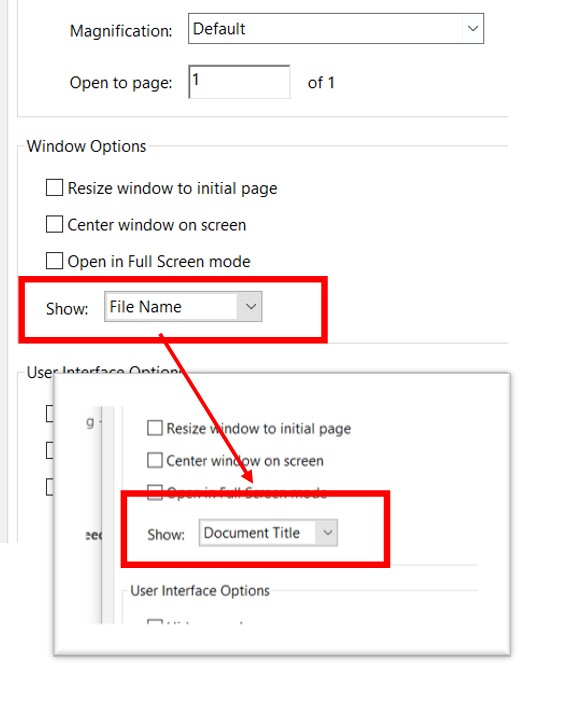
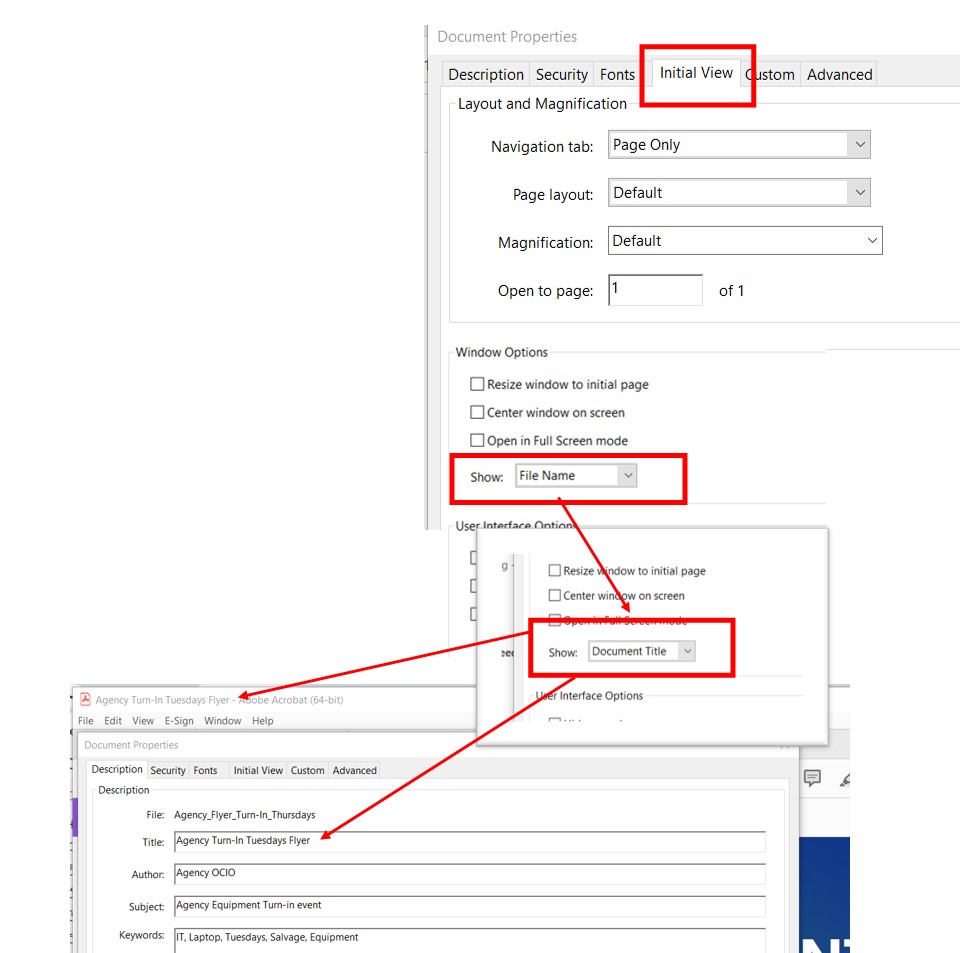
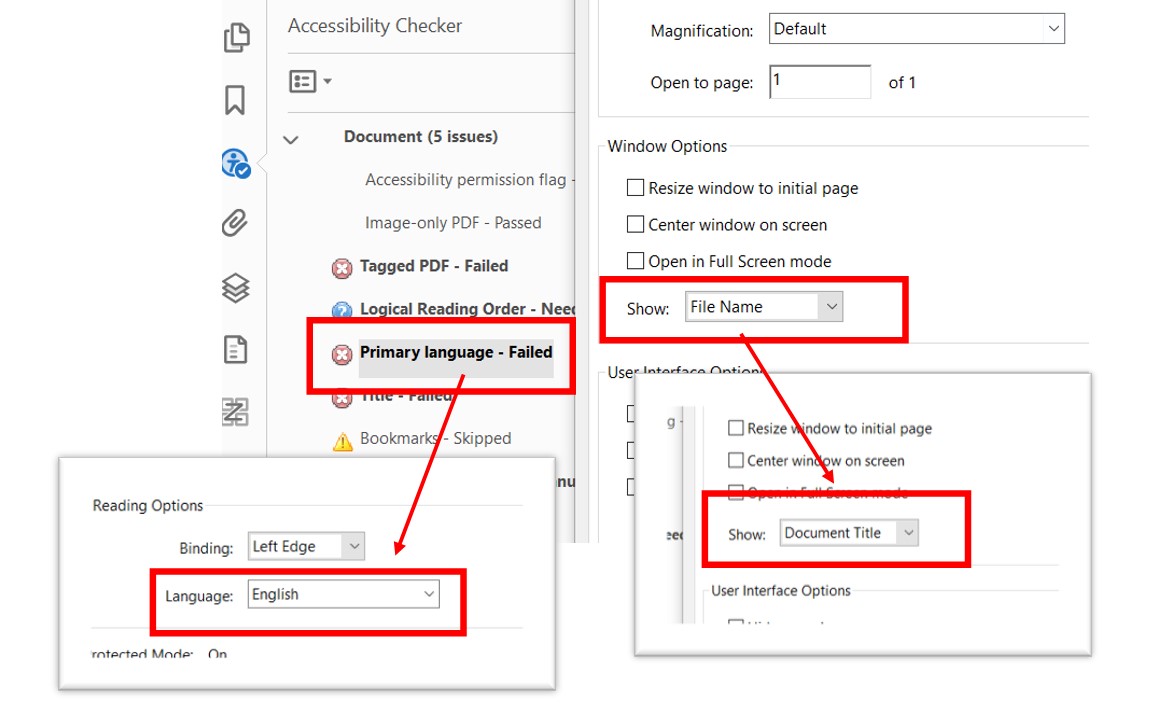
- Title failed – No document title set, so the file name displayed instead
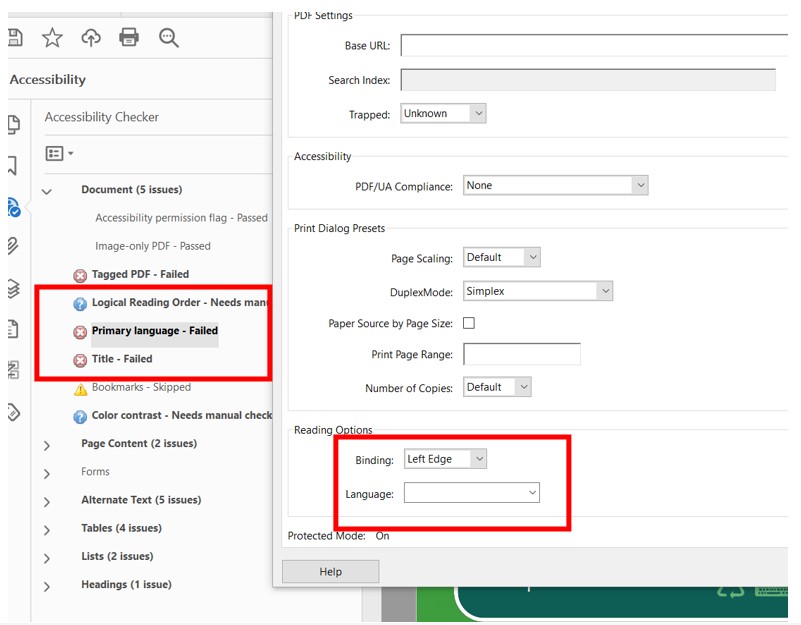
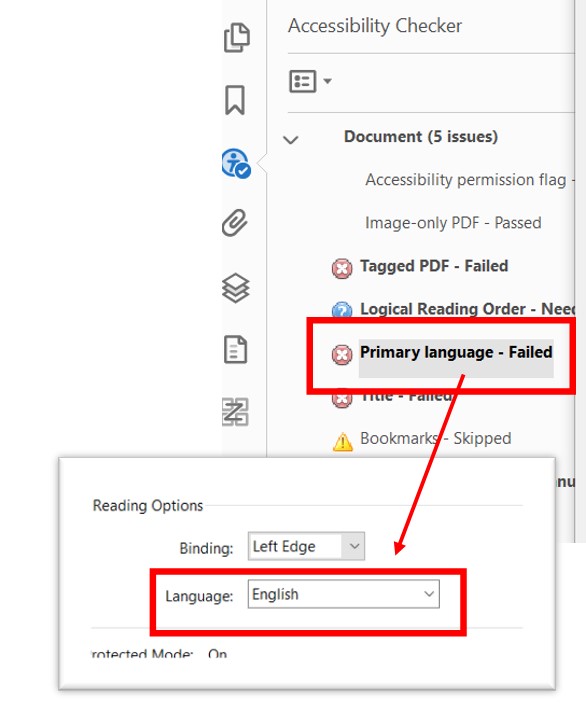
- Primary language failed – No language set, so screen readers could not choose the correct pronunciation
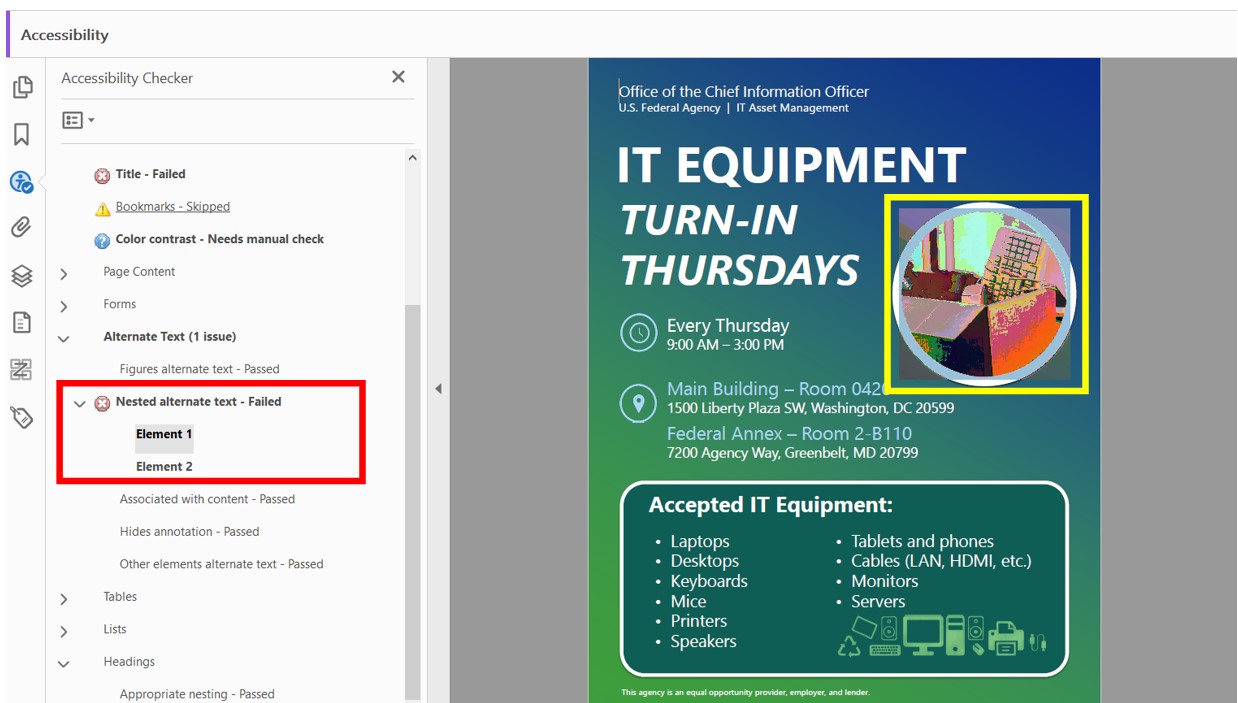
- Nested alternate text failed – Images placed inside other tags that hid them from assistive technology
- Content hidden as decorative – Real text and images wrapped in Art tags, which screen readers skip
- Layout misread as tables and lists – The two-column equipment list and page layout tagged incorrectly
- Reading order and color contrast – White text over a blue-to-green gradient required manual checks
Remediation Process
Phase 1: Document Title and Display
- Added a descriptive title, author, subject, and keywords in Document Properties
- Changed Initial View from Show: File Name to Show: Document Title, so the title appears in the window title bar
Phase 2: Primary Language
- Set the document language to English in Document Properties, Advanced, Reading Options
Phase 3: Correcting the Tag Structure
- Moved the schedule, locations, photo, and equipment list out of the decorative Art containers
- Tagged the announcement title as the H1 heading (
<H1>) - Tagged each schedule and location line as its own paragraph (
<P>) - Rebuilt the two-column equipment list as two real lists (
<L>,<LI>,<Lbl>,<LBody>) and removed incorrect table tags - Un-nested the Figure tags, kept meaningful images as Figures with alternate text, and marked purely decorative icons and shapes as artifacts
Phase 4: Reading Order and Color Contrast
- Verified with the Reading Order tool that content reads top to bottom: agency, title, schedule, locations, equipment list, footer
- Checked white and light-blue text against the darkest and lightest points of the gradient, including the small footer statement
Phase 5: Final Validation
Testing Performed:
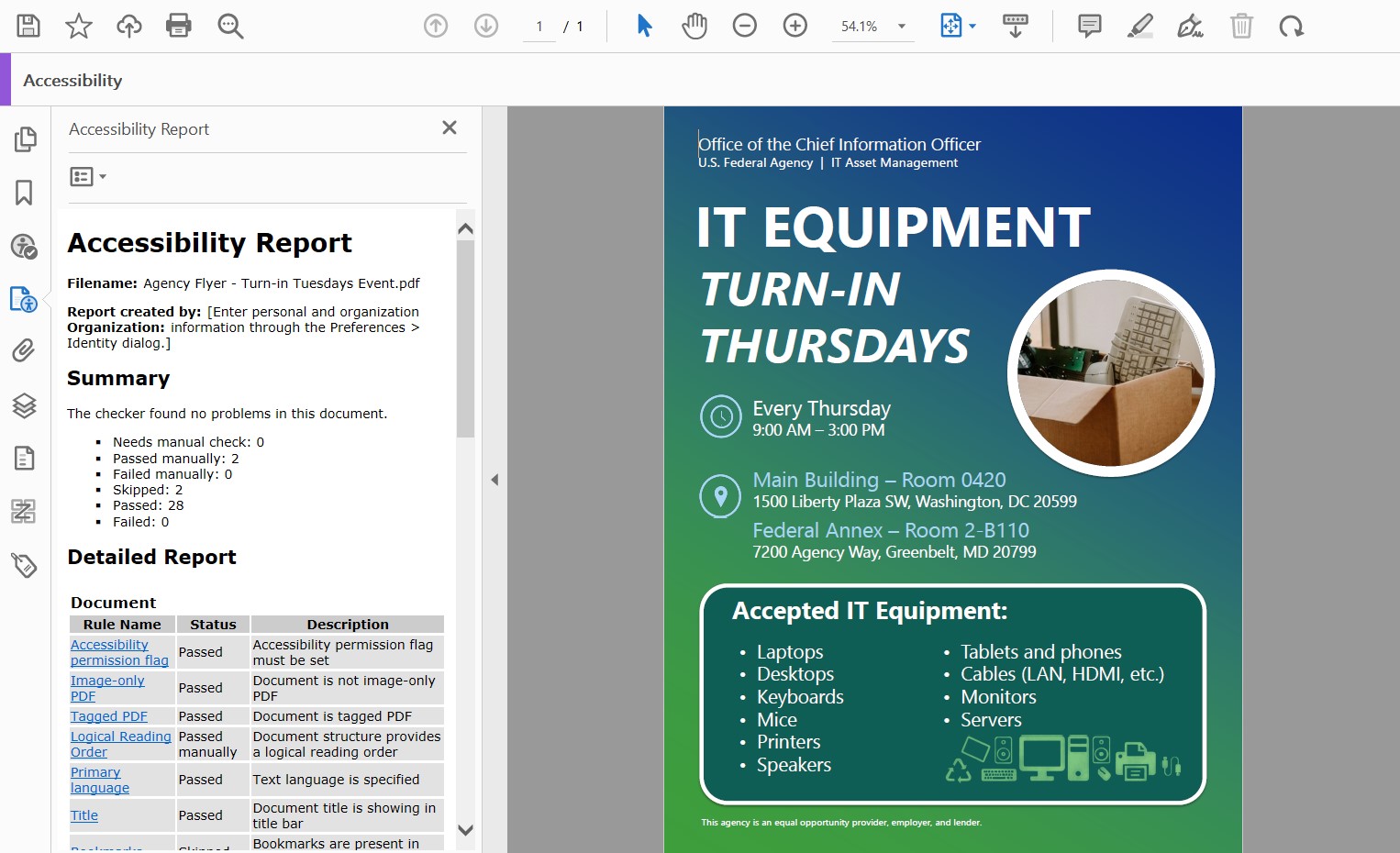
- Adobe Accessibility Checker: Zero failures
- Tag tree review: Confirmed every text block sits in a readable tag, not a decorative one
- Reading order: Passed manually
- Color contrast: Passed manually
Before vs. After Comparison
| Check | Before Remediation | After Remediation |
|---|---|---|
| Title | Failed | Passed, shown in title bar |
| Primary language | Failed | Passed (English) |
| Nested alternate text | Failed | Passed |
| Text content | Hidden in decorative tags | Tagged as heading, paragraphs, and lists |
| Reading order | Needs manual check | Passed manually |
| Color contrast | Needs manual check | Passed manually |
| Checker total | Issues in 6 of 7 categories | 0 failed |
Results & Impact
- Original federal document: 0 failed, 29 passed, 2 passed manually, delivered within about one business day, including a full rework after the source file was reconverted
- Every text block reaches screen reader users – The event schedule and locations are now announced instead of skipped
- Section 508 and WCAG 2.1 AA conformant – Ready for agency distribution
Key Lesson: Don’t Trust the Export
Design tools often mark real content as decorative when exporting to PDF. A document can look perfect and still hide its most important information from screen readers. The tag tree, not the visual page or the checker summary, shows what assistive technology will actually read.
Compliance Standards Met
- Section 508 (federal accessibility standard)
- WCAG 2.1 Level AA (Web Content Accessibility Guidelines)
- PDF/UA (ISO 14289-1) – Universal Accessibility standard for PDF documents
Tools & Technologies
Primary Tools: Adobe Acrobat Pro (Accessibility Tags panel, Reading Order tool, Document Properties)
Validation Tools: Adobe Accessibility Checker, Colour Contrast Analyser
Standards: Section 508, WCAG 2.1 Level AA, PDF/UA (ISO 14289-1)
Reflection
This project showed how quickly a simple content update can turn into a full remediation. When the requester reconverted the source file, the new automatic tagging buried nearly every line of text in decorative tags. Rather than patching individual checker errors, I corrected the structure from the tag tree up and still delivered within one business day.
It also reinforced the value of clarifying a vague request before starting. Confirming the full location details up front would have prevented a second round of edits.